Temporary computer use for visitors
Visitors without a TUNI account can, if necessary, be provided with a personal visitor key for computer access. A typical use case for the service is a visiting lecturer who does not have their own computer with them and has a temporary need to sign in to a classroom presentation PC. The visitor key works only on specific computers and can be valid for 1–7 days. If needed, you may ask the IT Helpdesk which computers are available for this service.
Requesting a Visitor Key
Inform your TUNI staff contact person of your need for a visitor key well in advance. Your contact person will notify the campus info desks of your name, email address, and the reason you need the visitor key. Contact persons can submit the information using the service channel form Temporary computer use for visitors (login required).
You can collect the visitor key from the campus info desks during their opening hours. Be prepared to prove your identity when collecting it. Accepted forms of identification are a passport, identity card, or driving licence.
Once your identity has been verified, a visitor key will be created for you and sent to your email address.
When the visitor key is created, the service records the visitor’s name, email address, the number of the identification document used, the reason for the visit, and the contact person.
Logging in to a Computer
Log in to the computer using the Vieras/Guest account. Enter your email address and the visitor key you received on the screen that appears during sign‑in. You may use the computer once your access has been confirmed.
You may lock the computer if you step away briefly.
- The lock‑screen password is the same as your visitor key.
All session data and any files saved on the computer will be deleted when you log out or shut down the computer.
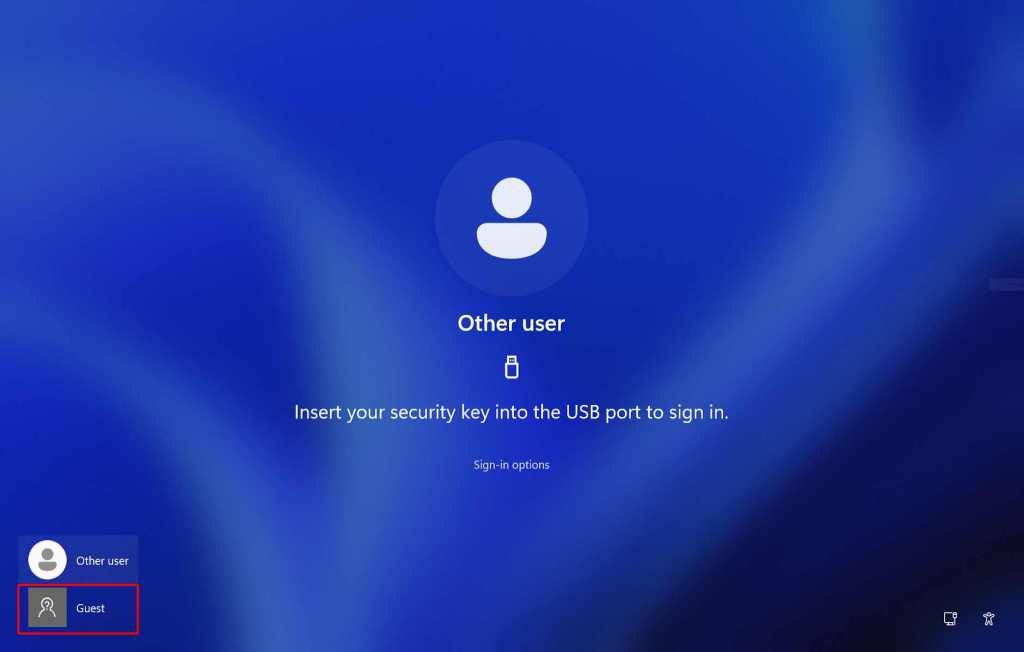
- Select the Vieras/Guest account from the bottom left corner of the screen.
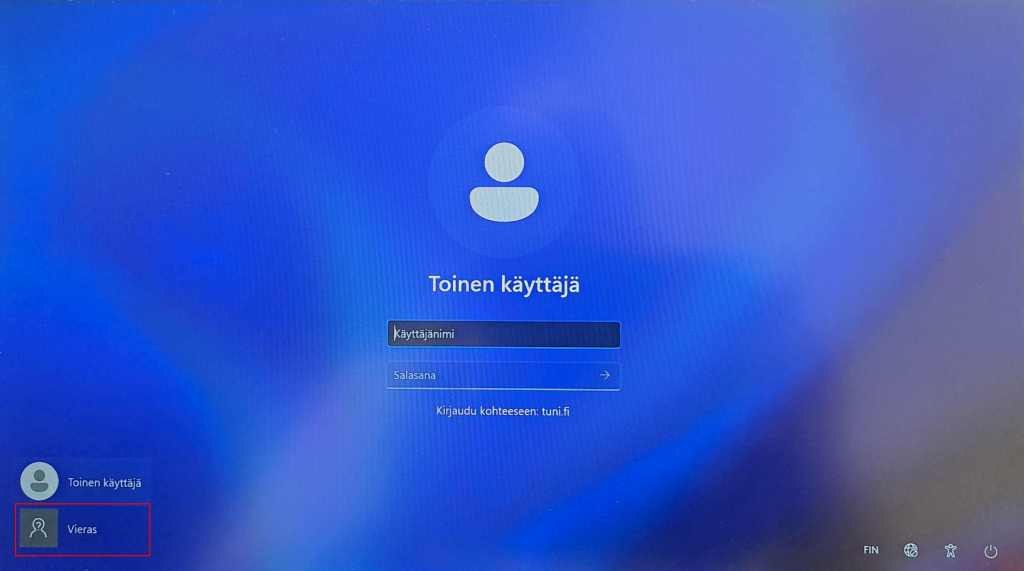
- Select the Vieras/Guest account from the bottom left corner of the screen.
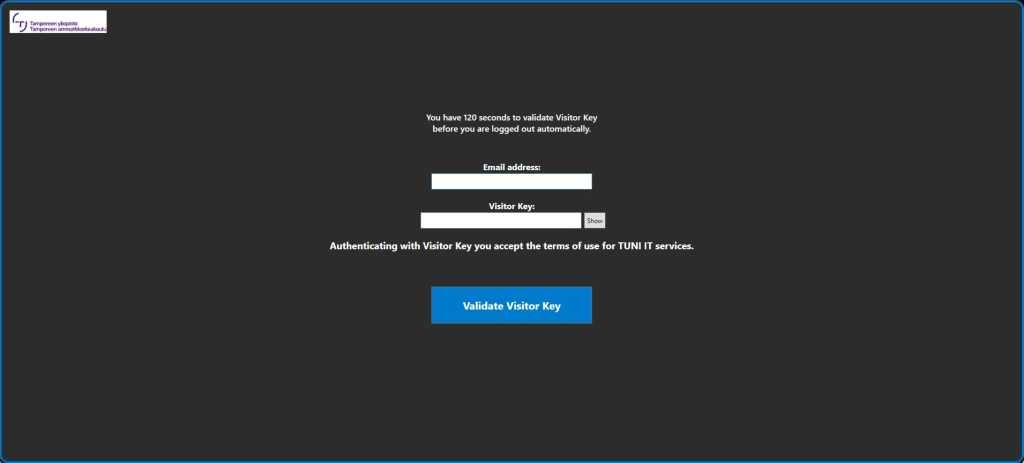
- Enter your email address and the visitor key you received in the fields provided.
- Select Validate Visitor Key.
- The computer will automatically return to the login screen if no information is entered within two minutes.
IT Helpdesk
0294 520 500
it-helpdesk [at] tuni.fi (it-helpdesk[at]tuni[dot]fi)
helpdesk.tuni.fi