Quick guide – Windows computers
- TUNI Windows Computers
- Logging in to the computer
- Multifactor authentication
- Saving your files
- Screen locking and power management settings
- Installing software
- Network connections
- VPN connection from off-campus
- Printing
- Malware protection
- Special needs not covered by basic services
- Changing default programs in Windows
- Periodic updates on Windows computers
TUNI Windows Computers
The TUNI computer environment is a common management environment for Windows computers to which the staff computers as well as computers in the computer labs are connected. Please find further information at Computer environment.
This page concerns the staff members’ computers in the TUNI environment.
Logging in to the computer
When logging in to the computer, use your TUNI email address. In the login window, you can see that you are specifically logging in to the TUNI environment. The sign in window should display the text TUNI or ad.tuni.fi.
Windows 11
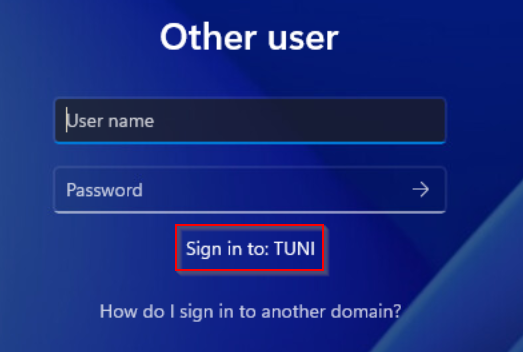
Multifactor authentication
Multifactor authentication is a prerequisite for using all electronic TUNI services.
Please read more about Multifactor authentication
Saving your files
You can save your files in the following locations:
Personal storage
These locations can be accessed with your account only. More information: Personal storage spaces
- OneDrive for Business (Microsoft 365 cloud service)
- Personal P: drive - Requires TUNI VPN connection when off-campus.
Group storage
You can access those Teams workspaces and group folders to which the owner has granted access to you.
- Teams workspaces (Microsoft 365 cloud service). More information: Teams workspaces
- Group folders on S: drive (requires TUNI VPN connection when off-campus). More information: Group folders
Saving data to your computer's local disk, for example Documents folder or the desktop, is not recommended because these locations are not backed up. An exception to this is if you have set up OneDrive back up which copies the contents of your Desktop, Documents and Pictures to OneDrive, which works as a backup. This function can be configured by clicking the OneDrive icon in system tray with secondary mouse button and choosing Settings - Back Up.
See the page Selecting storage location for more information about various storage choices.
Screen locking and power management settings
The screen of a TUNI computer will lock within 15 minutes if the computer is not used. If this default setting is not suitable for you, please contact the IT Helpdesk.
The power management settings have been defined for basic users. If you want to edit the settings:
- Open Software Center from the Start menu of your computer
- Choose Options -> Power Management -> Do not apply power settings from my IT department to this computer.
After this you can set suitable power management settings using Power Settings menu in Control Panel.
Installing software
As a default, you can find an array of applications on your computer, for example Microsoft Office desktop software and Edge browser.
Depending on your duties, you may also need other applications. The recommended software for working, teaching and research is described in the onion models of Digital Tools pages. The software available can be found on the Software Catalogue, check also the selection of Software Center and Company Portal on your computer. You can start the Software Center or Company Portal from the Start menu (type "software center" or "company portal" in the search field). More information on the installation of software as a self-service can be found on the page Software installation as a self-service.
If you need a new software that you don´t find on the Software Catalogue, read the instructions on the page How to get a new software? Please note that the instructions also apply to free software that is not listed on the software catalogue.
The Higher Education Community is obligated to comply with the software licenses of the applications. IT Services works to ensure that any installations are carried out according to the license conditions.
Access to the software is technically controlled and managed by Windows AppLocker feature.
Network connections
On campuses, laptops automatically connect to the TUNI-STAFF wireless network. In the TUNI-STAFF network you can, for example, use the network drives P: and S:, the printing queue and other internal network services. For more information, see Wireless network TUNI-STAFF.
For desktop computers of people who need a faster or more reliable network connection than a wireless network at the workplace, a wired network connection will be connected on request.
VPN connection from off-campus
Your computer has a remote connection service called TUNI VPN. This means that you can open an encrypted connection to the university’s network services anywhere you have an internet connection. Among other things, you can use the network drives P: and S: and the print queue even if you are not in the area covered by the TUNI-STAFF network. We recommend that you use a VPN connection for security reasons, for example, when you are using an external network in eg a hotel.
Start the VPN remote connection service:
- click the network connection icon in the lower right corner of the screen,
- select TUNI VPN -> Connect
- enter your TUNI username and password when prompted.
Further information is available at Remote access and VPN.
Printing
Your computer comes with a pre-installed print queue called SecurePrint that connects your printing requests to the university’s printing service. You can take out your printed documents from any printer in the Universities community. For more information, see Printing and copying.
Malware protection
TUNI Windows computers have automatically installed malware protection software Microsoft Defender that is configured to automatically protect the user and update automatically.
If you see an alert of a virus infection or other suspicious actions on your computer, disconnect the computer from network and contact IT Helpdesk as soon as possible.
Special needs not covered by basic services
Researchers and teachers often have IT needs that are not met by the basic services described above. For justified reasons, you may gain additional user rights to your TUNI computer that is only in your own work use. This will give you more responsibility for the security and maintenance of your computer.
In addition to Windows computers, IT Services also maintains Apple Mac and Linux computers. Please find further information at Computer environments.
In such special neends, contact the IT Helpdesk.
Changing default programs in Windows
See Microsoft’s support page.
Updates on Windows computers
Windows computers maintained by IT Services receive regular operating system, software, and device driver updates to ensure security and proper functionality. Updates are usually installed automatically in the background, and the user’s only responsibility is to close any application being updated when prompted, or to restart the computer to complete the installation. If the computer has not been restarted or shut down within a few days after updates have been installed, it will restart automatically.
Monthly Windows and Microsoft 365 Apps / Office security updates are released for installation on staff TUNI Windows computers on the 3rd Monday of each month. Updates are installed automatically outside the hours of 08:00–17:00, provided that the computer is powered on or can be automatically woken up. If you prefer, you may install Windows updates yourself via Start → Settings → Windows Update when updates are listed as available. The computer must be restarted within four days after the updates are installed. If the deadline passes, the computer will restart automatically.
Software-specific version and security updates are released more frequently. Depending on the applications installed on your computer, such updates may be delivered several times per week. Software updates may required actions from users, like closing the apps for update to continue or delay the update for up to 2 times. The following notification windows may appear during the update process.
Device driver updates are installed through Windows Update when necessary. Some driver updates may temporarily interrupt the connection to a docking station or external display, and some may require the computer to be restarted.
Windows computers may also receive larger operating system feature/version updates or version updates for individual applications on schedules that differ from the normal monthly cycle. These updates will be announced in advance on the intranet.
IT Helpdesk
0294 520 500
it-helpdesk [at] tuni.fi (it-helpdesk[at]tuni[dot]fi)
helpdesk.tuni.fi