Microsoft 365 add-on services
All browser based applications of Office 365 are available at https://m365.cloud.microsoft . Log in by using your TUNI email address.
Microsoft Office 365 cloud service
In the Microsoft Office 365 cloud service package, new services and applications are included regularly. The service package includes important features needed for teaching and work in the office, such as Outlook email application, cloud storage service OneDrive for Business, and Microsoft 365 Groups group work service. Microsoft also includes other applications and additional services, which the staff and the students can add independently.
Class Notebook
Class Notebook is a OneNote notebook for teaching; teachers can use it to manage the notebook users and the content shown to them. A Class Notebook has three sections: Content Library: the teacher can add to and edit the Content Library, students can only read the pages. Collaboration Space: Everyone can create and edit pages in the Collaboration Space. Student Notebook: All students have their own section, only visible to the individual student and the teacher.
How to get started:
- Class Notebook
- Sign in to the Microsoft 365 portal
- Open the Applications and select Class Notebook
- Create a new Class Notebook and add the preferred students and co-teachers
- Add a link to the notebook to the website or share it via email
Clipchamp
Clipchamp is a video editing program that allows you to create and edit videos. Clipchamp offers intuitive editing tools and customizable templates to help you tell your story your way. The program also includes AI-powered features such as text-to-speech conversion and automatic subtitles. There is also an installable version of the application available for install in Company Portal for IT-managed Windows devices or from the Microsoft Store on home devices.
Getting started:
- Log in to the Microsoft 365 portal
- Open the Applications and select Clipchamp
- Start creating and editing videos
Learn more about Clipchamp
Clipchamp instructruction from Microsoft
Forms
You can use Forms to create surveys and share them easily with the respondents. The application offers different types of questions, such as multiple choice, quiz, and open question. Mobile devices can also be used to respond. You can review the responses via the application either as a compilation or individually.
Instructions
How to create a survey with Forms (Microsoft)
Planner
Planner is a task management application provided by Microsoft, which is well integrated with other Microsoft 365 services, such as Outlook and Teams. With the help of the tool, it is possible to create and distribute tasks to the members of the Teams workspace, so that tasks can be easily monitored and promoted, among other things, for working on projects. Tasks can also be created without Teams workspace.
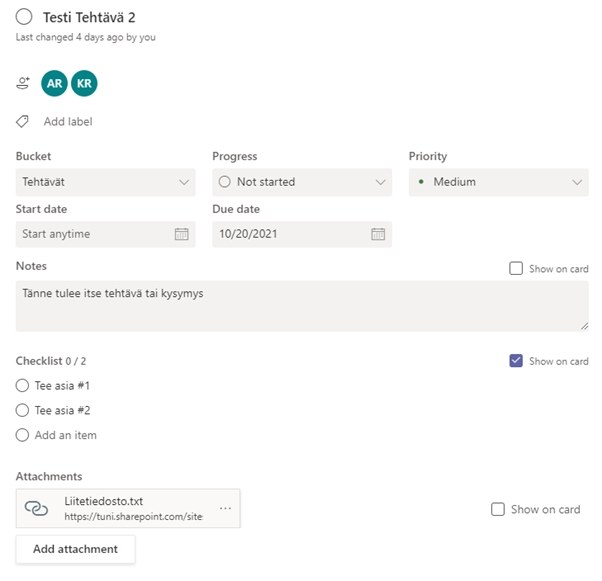
The tasks of the Teams workspace can be modified in a very versatile way, which facilitates the promotion and monitoring of the tasks. You can create as many tasks as you need, and tasks can be classified according to the current state of the task and the so-called according to the bucket, which can be used to further categorize the type of task. The image below shows an example task including all editable points.
Power Bi
Power BI is a reporting and analysis tool that can be used to visualise and combine data from organisations’ own systems, files, intranets, cloud services or, for example, various open data services. It provides real-time aggregate displays, reports and performance indicators.
Learn more about Power Bi
Sway
You can use Sway to create illustrative online materials, presentations and teaching materials. You can combine texts, images, video, sound files and animations in the material. Sway projects can be viewed on different kinds of displays, including mobile devices, and they are scaled according to the size of the display. You can publish and share Sway projects with other users.
How to get started - Sway quick start
ToDo
ToDo is a personal task management application provided by Microsoft. You can use the to-do list as your own to-do list and it allows you to focus on completing the most important tasks. If you wish, you can also share the to-do lists you have made with colleagues.
Additional instructions for using ToDo can be found on Microsoft's website https://support.microsoft.com/en-us/todo
IT Helpdesk
0294 520 500
it-helpdesk [at] tuni.fi (it-helpdesk[at]tuni[dot]fi)
helpdesk.tuni.fi