7-Zip
Compressing and encrypting files
You can compress several files into a single new file and encrypt it at the same time. If you follow these instructions, the encryption is sufficiently secure even for highly sensitive files such as personal data belonging to special categories of personal data (data classification 1R).
The 7-Zip program is pre-installed on TUNI Windows computers. The file format (7z) produced according to these instructions can only be opened with the 7-Zip program, so the recipient must also have the same program. The program is free and anyone may use it.
- Launch 7-Zip File Manager and browse to the folder that contains the folders and files you want to encrypt.
- Choose the folders and files you want to encrypt and click Add (plus sign).
- Set the necessary choices (See the picture below.)
- Name the resulting file package in a manner that does not contain anything confidential nor does reveal its contents too much (section a). You can direct the package to be created into another folder by selecting it via the three-dot-button on the right.
- Choose 7z as the archive format (section b).
- Invent and add the password (section c). The recommended length of the password is 20 characters including numbers and special characters.
- Write the password on a note either in full or in part. See the instructions of the Cyber Security Centre. Keep the note in a secure place. Record the information so that an outsider cannot tell which password it refers to. If this password is forgotten or lost, the package cannot be opened in any way, and all the encrypted files it contains will be permanently lost.
- Choose AES-256 as the encryption method (section d).
- Tick the box to encrypt the file names (section e).
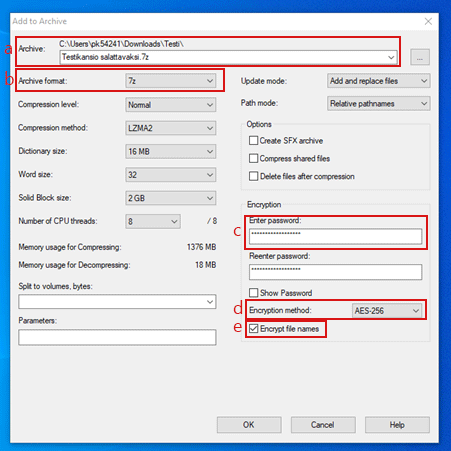
- When you approve the choices by clicking OK, the programme creates an encrypted package with the name you have chosen in the folder you selected.
- You can decrypt the encrypted 7z package, for example, by clicking the package with the right button of the mouse -> 7-Zip -> Extract Here.
- When prompted, give the password defined at encryption phase to decrypt the package.
Sending as an attachment
This allows you to send even highly sensitive data, such as special categories of personal data, by email as attachments.
- Create an encrypted file package according to the instructions above.
- Send the encrypted package to the recipient as an attachment in a Microsoft 365 encrypted email; see the instructions on the page Email encryption. If the file package is too large for email, you can also send it using Funet FileSender; see the instructions on the page Sharing large files.
- Send the password to the recipient via another communication channel, preferably by text message to the recipient’s personal mobile phone number.
IT Helpdesk
0294 520 500
it-helpdesk [at] tuni.fi (it-helpdesk[at]tuni[dot]fi)
helpdesk.tuni.fi