Selecting storage location
Where should I store my files?
First, consider who should have access to each set of your files. Then study the features of the different storage locations in the recommended table and select the best choice for your needs.
Items marked with a star ⭐ are suitable for general storage on TUNI Windows and TUNI Mac computers. Those without a star are only available on Linux servers or are intended for specific research use.
- If someone outside the Tampere Universities community may also need access to the files in addition to yourself, choose a storage location from the table Shared use with external users.
- These locations allow for all future sharing needs.
- Files stored in these locations remain available even if the user who created them leaves the work community, for example due to graduation or termination of employment.
- If it is sufficient that other members of the Tampere Universities community have access to the files in addition to yourself, choose a storage location from the table Shared use within the Tampere Universities community.
- Files stored in these locations remain available even if the user who created them would leave the work community, for example due to graduation or termination of employment.
- Use the storage locations listed under Personal storage only for files that you use yourself.
- These locations are only suitable for temporary sharing, even though you can share files with other users through OneDrive. All files in your OneDrive will be permanently deleted when your TUNI account is removed, for example after graduation or when your employment ends. This may result in the loss of files that other members of the university community still need.
- If you later need to share some of your files with others, move them to one of the storage locations listed in the two shared-use categories above.
See the descriptions of the features and the links to instructions after the tables. All storage locations are available on TUNI Windows and TUNI Mac computers. You can store files only temporarily in the local hard drive of class machines or TUNI Virtual Desktop because the files stored on them are not preserved. If you cannot find a solution that suits your needs or if you otherwise need help, please contact IT Helpdesk.
Note that the term Personal data in the column Confidentiality refers to data about people as defined in GDPR and other legislation. You can find instructions for storing and encrypting personal data and otherwise confidential data on the page Secure file storage.
Shared use with external users
The Teams workspace is the preferred general purpose storage location. CSC provides systems for researchers.
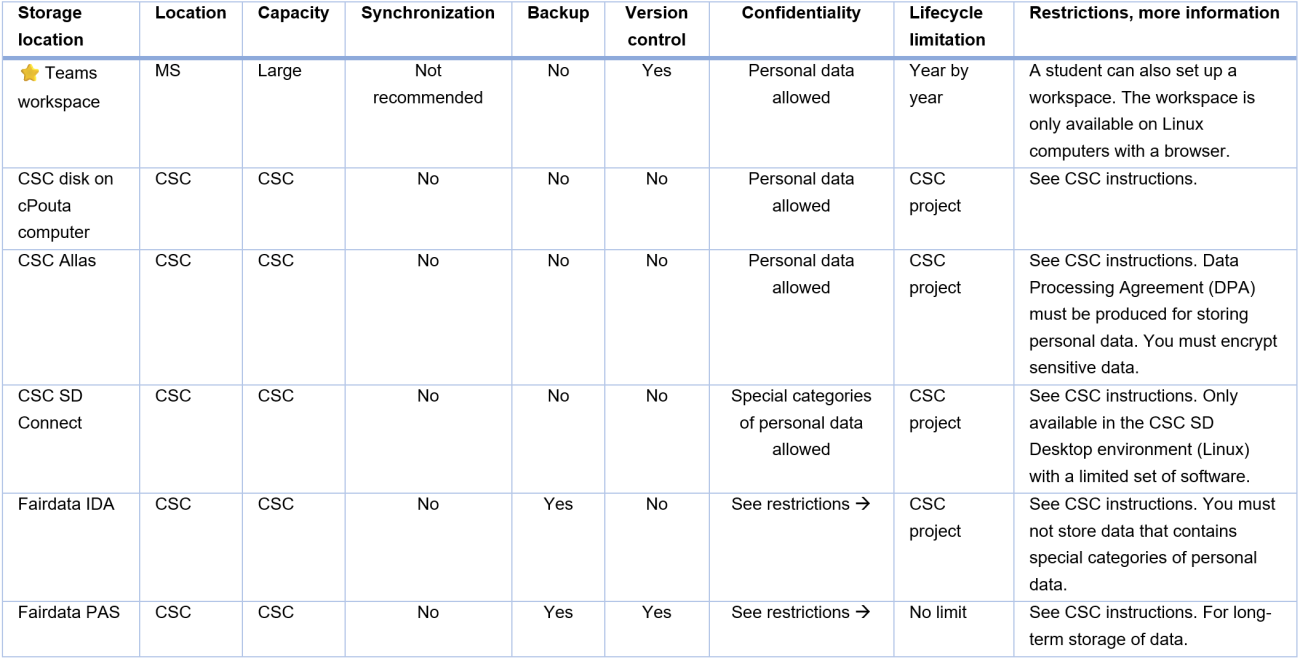
The table above in text format, which also has links to the instructions.
Shared use within the Tampere Universities community
The Teams workspace is the preferred general purpose storage location.
S drive aka Group folder is applicable for specific needs (our instructions).
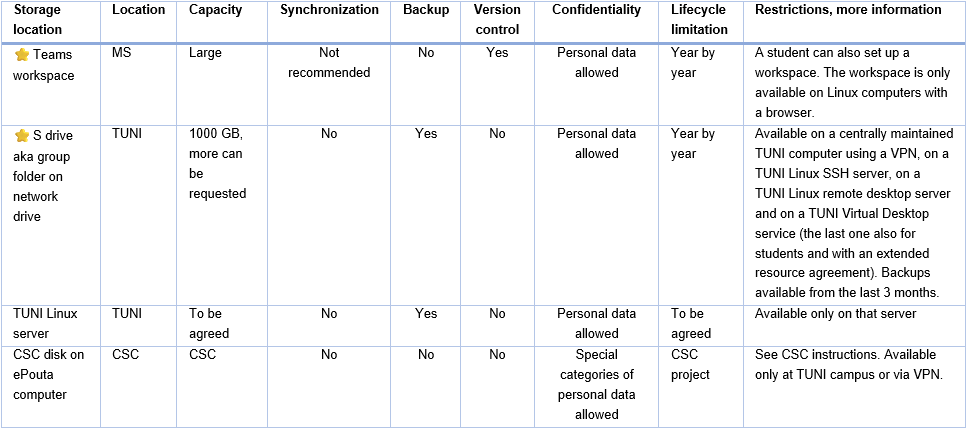
The table above in text format, which also has links to the instructions.
Personal storage
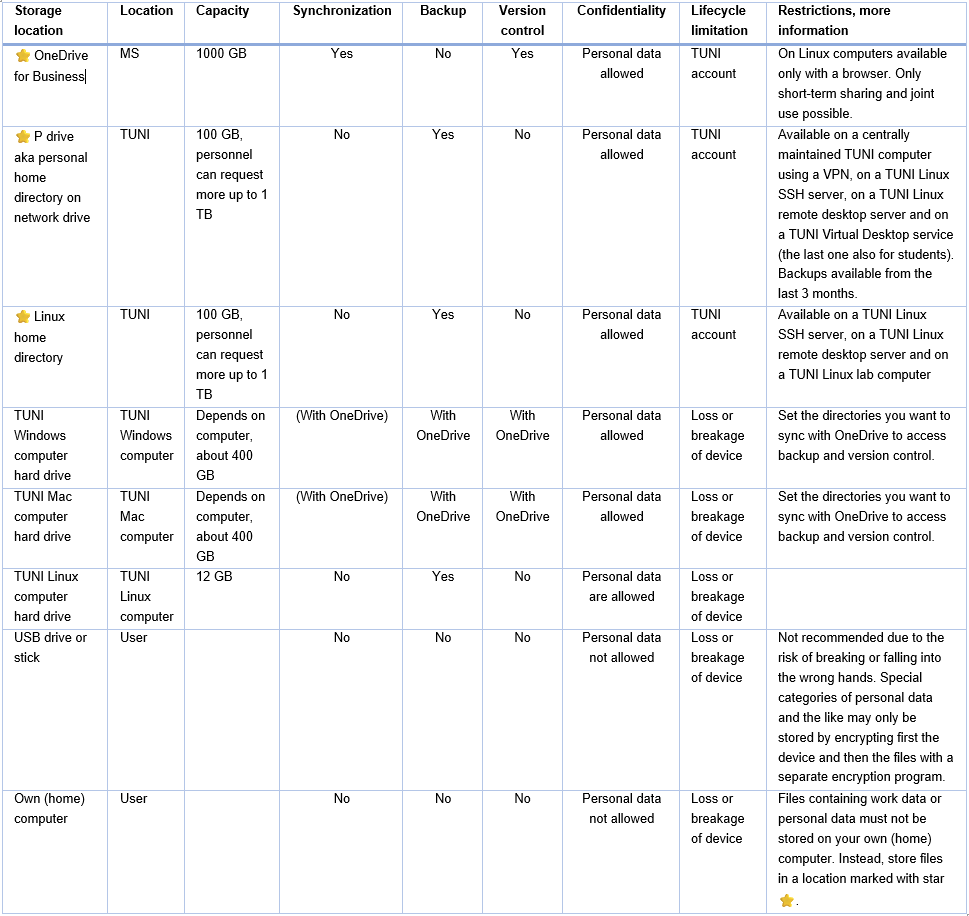
The table above in text format, which also has links to the instructions.
Descriptions of features
- Location:
- MS = Files are stored in Microsoft's M365 cloud service in the EU/EEA
- TUNI = Files are in the university's own data centre in Tampere
- CSC = Files are stored in CSC's data centre in Finland
- Capacity (maximum total storage)
- Large = No specific limit. If you need more than 1 TB, contact IT Helpdesk.
- CSC = There is a limit, capacity is requested from CSC, please contact IT Helpdesk
- Synchronization: You can set the files you want to sync automatically between the TUNI computer's hard drive and the cloud service, allowing you to process them even without a network connection
- Backup: The files can be recovered even if the storage system is destroyed (device failure, fire, etc.).
- Version control: You can manually restore an earlier version of a file that you accidentally changed. Earlier versions can currently be restored for up to 90 days in P and S drives, 30 days in OneDrive, and 30 days in Teams workspace. If you have enabled OneDrive synchronization, you can recover the file you accidentally deleted from the OneDrive Trash within 30 days.
- Confidentiality:
- If your files contain information from or about people, you are very likely processing personal data. See detailed instructions for assessment on the page Secure file storage. If your files do not contain personal data or otherwise confidential data, you can ignore this column.
- Personal data not allowed: Personal data and the like may only be stored by encrypting the files with a separate encryption program (instructions available at Secure file storage page).
- Personal data allowed: Personal data and the like may be stored without the use of a separate encryption program. Special categories of personal data and the like may only be stored by encrypting the files with a separate encryption program (instructions available at Secure file storage page). If a student needs to process special categories of personal data, the faculty must enter into an extended resource agreement for the student and request via IT Helpdesk a centrally managed computer (similar to that of the staff) for the student.
- Special categories of personal data allowed: Special categories of personal data and the like may be stored without the use of a separate encryption program.
- Lifecycle limitation: How long the storage location remains available.
- TUNI account: The storage location is destroyed when the TUNI account that created it is removed (e.g. when the employment contract ends or the student graduates)
- Year by year: You can request an extension year by year to use the storage location.
- To be agreed: The deadline for using the storage location is agreed on a case-by-case basis.
- CSC Project: The storage location is available as long as the CSC project that created it is valid. The continuation of the project must be requested from the CSC.
- Loss or breakage of device: Devices may break or get lost at any time. The files should also be stored elsewhere.
Links to instructions
Joint use also with outsiders
⭐ Teams workspace (our instructions)
- Location: MS
- Capacity: Large
- Synchronization: Not recommended
- Backup: No
- Version control: Yes
- Confidentiality: Personal data allowed
- Life-cycle limitation: Year by year
- Restrictions, more information: A student can also set up a workspace. The workspace is only available on Linux computers with a browser.
CSC disk on cPouta computer (our instructions)
- Location: CSC
- Capacity: CSC
- Synchronization: No
- Backup: No
- Version control: No
- Confidentiality: Personal data allowed
- Life-cycle limitation: CSC project
- Restrictions, more information: See CSC instructions.
CSC Allas
- Location: CSC
- Capacity: CSC
- Synchronization: No
- Backup: No
- Version control: No
- Confidentiality: Personal data allowed
- Life-cycle limitation: CSC project
- Restrictions, more information: See CSC instructions. Data Processing Agreement (DPA) must be in place for storing personal data. You must encrypt sensitive data.
CSC SD Connect (our instructions)
- Location: CSC
- Capacity: CSC
- Synchronization: No
- Backup: No
- Version control: No
- Confidentiality: Special categories of personal data allowed
- Life-cycle limitation: CSC project
- Restrictions, more information: See CSC instructions. Only available in the CSC SD Desktop environment (Linux) with a limited set of software.
Fairdata IDA (our instructions)
- Location: CSC
- Capacity: CSC
- Synchronization: No
- Backup: Yes
- Version control: No
- Confidentiality: See restrictions below
- Life-cycle limitation: CSC project
- Restrictions, more information: See CSC instructions. You must not store data that contains special categories of personal data.
Fairdata PAS
- Location: CSC
- Capacity: CSC
- Synchronization: No
- Backup: Yes
- Version control: Yes
- Confidentiality: See restrictions below
- Life-cycle limitation: CSC project
- Restrictions, more information: See CSC instructions. For long-term storage of data.
Joint use within the Tampere Universities community
⭐ Teams workspace (our instructions)
- Location: MS
- Capacity: Large
- Synchronization: Not recommended
- Backup: No
- Version control: Yes
- Confidentiality: Personal data allowed
- Life-cycle limitation: Year by year
- Restrictions, more information: A student can also set up a workspace. The workspace is only available on Linux computers with a browser.
⭐ S drive, also known as Group folder on network drive (our instructions)
- Location: TUNI
- Capacity: 1000 GB, more can be requested
- Synchronization: No
- Backup: Yes, but backups are available only from the last 3 months.
- Version control: No
- Confidentiality: Personal data allowed
- Life-cycle limitation: Year by year
- Restrictions, more information: Available on a centrally maintained TUNI computer using a VPN, on a TUNI Linux SSH server, on a TUNI Linux remote desktop server and on a TUNI Virtual Desktop service (the last one also for students, our instructions)
TUNI Linux server (our instructions)
- Location: TUNI
- Capacity: To be agreed
- Synchronization: No
- Backup: Yes
- Version control: No
- Confidentiality: Personal data allowed
- Life-cycle limitation: To be agreed
- Restrictions, more information: Available only on that server
CSC disk on ePouta computer (our instructions)
- Location: CSC
- Capacity: CSC
- Synchronization: No
- Backup: No
- Version control: No
- Confidentiality: Special categories of personal data allowed
- Life-cycle limitation: CSC project
- Restrictions, more information: See CSC instructions. Available only at TUNI campus or via VPN.
Personal storage
⭐ OneDrive for Business (our instructions)
- Location: MS
- Capacity: 1000 GB
- Synchronization: Yes
- Backup: No
- Version control: Yes
- Confidentiality: Personal data allowed
- Life-cycle limitation: TUNI account
- Restrictions, more information: On Linux computers available only with a browser. Only short-term sharing and joint use possible.
⭐ P drive aka personal home directory on network drive (our instructions)
- Location: TUNI
- Capacity: 100 GB, personnel can request more up to 1 TB
- Synchronization: No
- Backup: Yes, but backups are available only from the last 3 months.
- Version control: No
- Confidentiality: Personal data allowed
- Life-cycle limitation: TUNI account
- Restrictions, more information: Available on a centrally maintained TUNI computer using a VPN, on a TUNI Linux SSH server, on a TUNI Linux remote desktop server and on a TUNI Virtual Desktop service (the last one also for students, our instructions)
⭐ Linux home directory (our instructions)
- Location: TUNI
- Capacity: 100 GB, personnel can request more up to 1 TB
- Synchronization: No
- Backup: Yes
- Version control: No
- Confidentiality: Personal data allowed
- Life-cycle limitation: TUNI account
- Restrictions, more information: Available on a TUNI Linux SSH server, on a TUNI Linux remote desktop server and on a TUNI Linux lab computer
TUNI Windows computer hard drive (our instructions)
- Location: TUNI Windows computer
- Capacity: Depends on computer, about 400 GB
- Synchronization: (With OneDrive)
- Backup: With OneDrive
- Version control: With OneDrive
- Confidentiality: Personal data allowed
- Life-cycle limitation: Loss or breakage of device
- Restrictions, more information: Set the directories you want to sync with OneDrive to access backup and version management (our instructions).
TUNI Mac computer hard drive (our instructions)
- Location: TUNI Mac computer
- Capacity: Depends on computer, about 400 GB
- Synchronization: (With OneDrive)
- Backup: With OneDrive
- Version control: With OneDrive
- Confidentiality: Personal data allowed
- Life-cycle limitation: Loss or breakage of device
- Restrictions, more information: Set the directories you want to sync with OneDrive to access backup and version management (our instructions).
TUNI Linux computer hard drive (our instructions)
- Location: TUNI Linux computer
- Capacity: 12 GB
- Synchronization: No
- Backup: Yes
- Version control: No
- Confidentiality: Personal data allowed
- Life-cycle limitation: Loss or breakage of device
- Restrictions, more information:
USB drive or stick
- Location: User
- Capacity:
- Synchronization: No
- Backup: No
- Version control: No
- Confidentiality: Personal data not allowed
- Life-cycle limitation: Loss or breakage of device
- Restrictions, more information: Not recommended due to the risk of breaking or falling into the wrong hands. Special categories of personal data and the like may only be stored by first encrypting the device and then encrypting the files with a dedicated encryption program (our instructions).
Own (home) computer
- Location: User
- Capacity:
- Synchronization: No
- Backup: No
- Version control: No
- Confidentiality: Personal data not allowed
- Life-cycle limitation: Loss or breakage of device
- Restrictions, more information: Files containing work data must not be stored on your own (home) computer. If a TUNI computer is not available, we recommend TUNI Virtual Desktop (our instructions).
IT Helpdesk
+358 294 520 500
it-helpdesk [at] tuni.fi (it-helpdesk[at]tuni[dot]fi)
helpdesk.tuni.fi