Information security guidelines for setting up remote meetings and interviews using Teams or Zoom
Use Teams or Zoom with your TUNI ID
When using Teams and Zoom with the TUNI ID, the services are provided in accordance with the data processing agreement between Tampere University Foundation and the service provider. This means that all data, including any recordings, will remain within the EEA area and the data processing will comply with data protection legislation.
Read more on the intranet Zoom meetings’ privacy and security
Presenting sensitive information and conducting interviews remotely
For patient interviews and the processing of anonymised patient data, for example in a teaching situation, TUNI Teams (recommended) or TUNI Zoom services (if Teams is not possible) can be used by following the instructions below:
- You can use video call, voice call and screen sharing.
- The chat functionality of the service must not be used to convey the personal data of the patient or interviewee.
- Use strong participant identification whenever possible.
- As a rule, the recording of an event is not allowed. In the case of a research interview and the recording of the interview has been agreed separately, the recording is possible.
In Zoom, the local recording ("record to this computer") goes directly to the researcher's / teacher's computer, and participants do not have direct access to the recording.In this case, take care to ensure that the recording is handled and stored safely. Recommended storage locations are Tuni Groups and Project folders.
In Teams, the recording is automatically saved to the recorder's OneDrive. The recording can be set to start automatically, so the recorder is certainly a organizer of the meeting. By default, the recording will have rights for all invited to the meeting, but if you do not want to do so, you can prevent this by deleting the rights as soon as the recording is completed. Open the OneDrives My Files / Recordings directory in your browser and organize your recordings from newest to oldest, making it easy to find a new record. When the recording appears, click the three dots next to the entry and select Manage Access from the drop-down menu. First, you can click Stop sharing, which will remove the sharing right immediately. After that, however, you may still want to remove the "People you specify can view" view by clicking on the three dots next to the link and clicking on the cross next to the link. - The recording is made by the interviewer or teacher on the personal computer used by him or her if the computer’s mass storage (hard disk) is encrypted and the data is processed in accordance with the instructions for processing patient data.
- Meeting invitations cannot be forwarded.
- To add people who have not received an invitation to the meeting, create a new meeting to which new people have also been invited. In this case, everyone who attends the meeting is invited and everyone knows who all the participants are.
Secure Teams meeting with end-to-end encryption
End-to-end encrypted Teams meetings may be necessary if special category data (sensitive personal data) is processed in the meeting (e.g. health data, a person's political, ideological, religious, etc. views). When the meeting is to discuss or process sensitive information, the Teams meeting should be created with a TUNI account, and the meeting inviter should turn on encryption before the meeting according to the instructions below. At the beginning of the meeting, the participants must identify each other by turning on the camera at least for the duration of identification.
Sensitive research data must always be protected from disclosure to outsiders. Meetings where special personal data or otherwise sensitive information is processed should only be held in spaces where outsiders do not have the opportunity to hear the discussion or see the information being processed on the computer screen. For example, such meetings may not be held in cafes, trains or other public places. There must not be people in the same room who are not involved in the research and who do not have the right to hear the research data. The meeting host must ensure that the other participants in the meeting also follow these instructions. At the beginning of the meeting, it must be ensured that there are no AI assistants, such as AI-based assistants that perform automatic translation or transcription.
With an end-to-end encrypted connection, Teams meetings can also be held outside Finland with partners working in the EU/EEA.
Briefly:
- If there is a need to process data containing special personal data or otherwise sensitive research data with external partners (in the EU/EEA) in a Teams meeting, use end-to-end encryption
- Create a meeting with a TUNI ID with a Teams Premium license
- Do not attend meetings from public places
- Make sure that no unauthorised person can overhear your meeting conversation
- When the meeting starts, identify other meeting participants using the camera feed
- Make sure there are no extra/inappropriate participants in the meeting
- Make sure that everyone in the meeting follows these safety guidelines
End-to-end encrypted Teams Meeting requires a paid Teams Premium license. If you need a Teams Premium license, please contact the IT Helpdesk.
- End-to-end encryption must be enabled in the meeting settings before starting a meeting
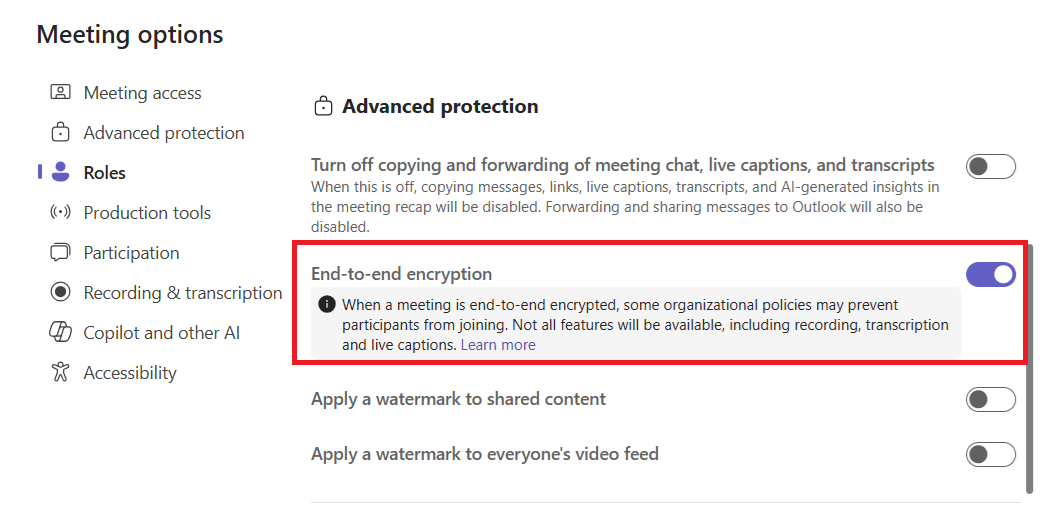
- End-to-end encrypted meeting has a capacity of 200 participants
- Using an encrypted meeting does not work in the browser version, but only with the Teams app
- Recording, captions, or translated captions don't work in an encrypted meeting
- The chat function is not encrypted. You can turn it off in the meeting settings or remind participants not to enter sensitive information in the chat
- To verify encryption, make sure that the code in the encryption indicator is the same for everyone in the meeting
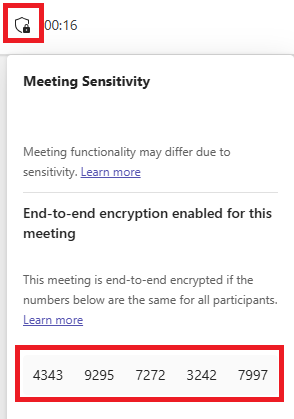
Microsoft documentation: Use end-to-end encryption for Teams meetings - Microsoft Support
Secure Zoom meeting with end-to-end encryption
When a meeting is to discuss or process sensitive information (special category data e.g. health data, a person's political, ideological, religious, etc. views), use end-to-end encryption in the Zoom meeting. The Zoom meeting should be created using a TUNI account via the Zoom service at https://tuni.zoom.us. Before the meeting, the organizer must enable encryption following the instructions below. Encryption cannot be enabled for ad-hoc meetings, and the setting cannot be changed during a meeting. Participating in an end-to-end encrypted Zoom meeting requires the Zoom Workplace application; joining via a browser is not possible. The Zoom application can be downloaded from https://zoom.us/download
At the beginning of the meeting, participants must identify each other by turning on their cameras at least for the duration of identification. Use a waiting room in the Zoom meeting to prevent uncontrolled access to the room.
Sensitive research data must always be protected from disclosure to outsiders. Meetings where special personal data or otherwise sensitive information is processed should only be held in spaces where outsiders do not have the opportunity to hear the discussion or see the information being processed on the computer screen. For example, such meetings may not be held in cafes, trains or other public places. There must not be people in the same room who are not involved in the research and who do not have the right to hear the research data. The meeting host must ensure that the other participants in the meeting also follow these instructions. At the beginning of the meeting, it must be ensured that there are no AI assistants, such as AI-based assistants that perform automatic translation or transcription.
In short:
- Enable encryption in your personal Zoom settings
- Schedule the meeting in advance and enable end-to-end encryption in the meeting’s settings
- Do not participate from public places
- Ensure that no unauthorized person can hear the meeting discussion
- Enable waiting room for your Zoom meeting
- At the start of the meeting, identify participants via video
- Verify that participants have the same encryption code as you
- Ensure there are no extra/unauthorized participants
- Make sure all participants follow these security guidelines
Encryption must first be enabled in the user’s Zoom settings.
- Sign in at https://tuni.zoom.us
- Select profile >> Settings >> Meeting >>Security>> enable “Allow use of end-to-end encryption”
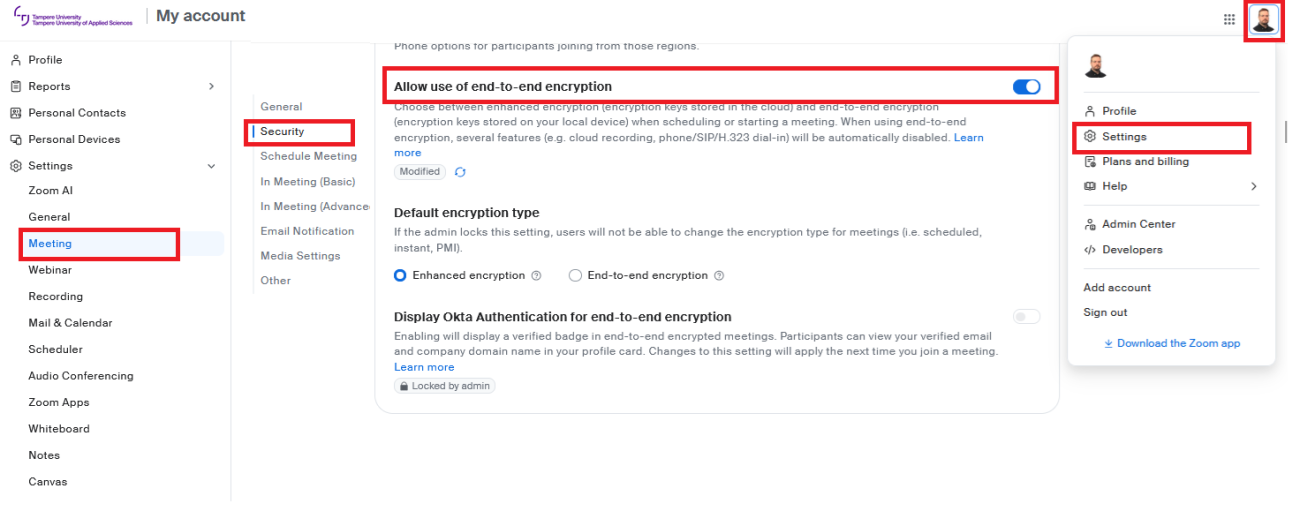
- The default encryption type: “Enhanced encryption.” For meetings that require end-to-end encryption, select it specifically in the meeting settings.
- Schedule the meeting in the Zoom application or the web portal at https://tuni.zoom.us and select End-to-End encryption in the meeting settings.
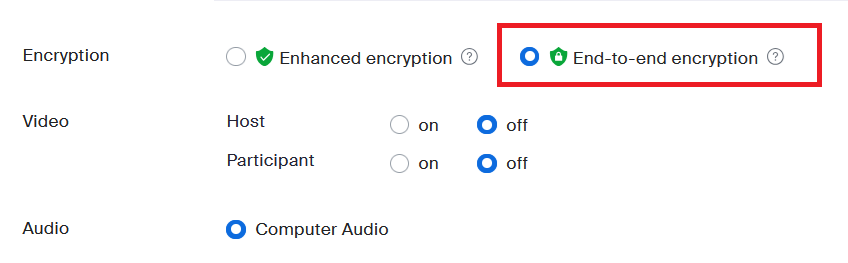
At the start of the meeting, check the code found under the meeting security “Verify” function in the Zoom application. Read the code aloud and ask participants to verify that they have the same code.
In an end-to-end encrypted meeting, not all Zoom features are available. For example, cloud recording and polls do not work in an end-to-end encrypted meeting; local recording on your own computer does.
Zoom documentation https://support.zoom.com/hc/en/article?id=zm_kb&sysparm_article=KB0075502#h_2115540213061715797371774