Teams meeting practices
Teams meeting recordings
If a meeting is created as a Teams meeting between two or more people, the recording will be saved on the OneDrive of the person who organizes the meeting and thus the organizer of the meeting becomes the owner of the recording. Previously, the recording was saved in the recorder's OneDrive. A link to the recording is automatically added to the meeting's conversation view, and meeting participants are automatically granted access to the recording. When needed, the owner of the recording can also change the access rights immediately after the recording is completed.
If the meeting is created on Teams workspace, the recording is saved in the workspace files and can be viewed in the Recordings directory via Teams or SharePoint, and from the link in the chat window. Access is automatically granted to anyone who has access to that workspace.
The default expiration time for meeting recordings is 180 days.
Sharing the Teams recording to Tampere Universities
- Find the recording in OneDrive or SharePoint.
- Move the mouse over the recording and click on the three dots next to the name, and a menu will open for you.
- Select Manage access from the menu.
- Click Share.
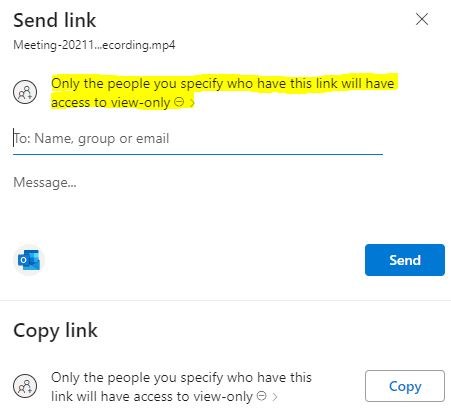
- Click on the text below the name. It can be something else than in my example
- Choose People in TUNI.fi with the link from the options that open up
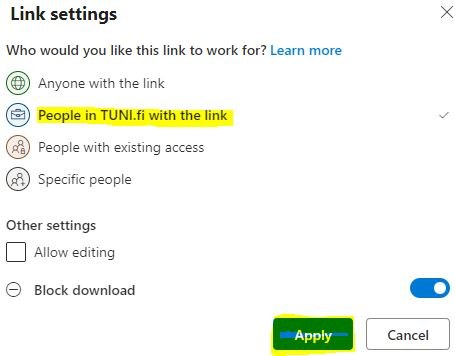
- Finally, confirm by clicking Apply.
- You can either send the link to the desired people by entering their email address in the To field and finally clicking Send.
Or you can click Copy and share the link you received in your desired message or, for example, on Intra.
IT Helpdesk
+358 294 520 500
it-helpdesk [at] tuni.fi (it-helpdesk[at]tuni[dot]fi)
helpdesk.tuni.fi