Video captions
Videos uploaded to the online service must meet accessibility standards from September 23, 2020. Videos must be made accessible within 14 days after posting them online. The accessibility requirement does not apply to old videos (before 23.9.2020). Read more Accessible videos.
Creating subtitles
You can crete subtitles in
- Panopto video platform
- Subtitle Edit (with Whisper installed)
- Microsoft Clipchamp
You can use automatic speech recognition to produce subtitles, but these always require a subtitle check. Particularly good features of the Subtitle Edit program are the precise adjustment options for how much and for how long the text is displayed on the screen at a time. Check the subtitling instructions for Panopto in the next paragraph, see also the instructions for the Subtitle Edit application. In Microsoft Clipchamp, subtitles can be generated using speech recognition, but new timestamps cannot be added manually. Instructions for Microsoft Clipchamp.
Adding ASR (Automatic Speech Recognition) captions to Panopto video
You have the ability to add subtitles created by ASR (Automatic Speech Recognition) to Panopto videos. Speech recognition works in Finnish by default, but you can change ASR language to English by changing video folder settings: Folder Settings > Settings > Content language.
You can also change the ASR language of uploaded files: select settings > captions > available captions > change language. Panopto instructions for reprocessing automatic captions: https://support.panopto.com/s/article/How-to-Reprocess-Automatic-Captioning-to-a-Different-Language
Note that it is a good idea to check and edit subtitles created on the ASR to ensure their accuracy.
After the transition to the new Panopto environment (4.12.2020), in addition to the text produced by Panopto, you can add subtitles from a file (different language versions).
ASR subtitles are not available in the editor as soon as the video has been downloaded and processed. Below are the target times for auto captions.
Targeted caption completion time for videos with an hour or less: 8 hours
Targeted caption completion time for videos longer than an hour: 1 day
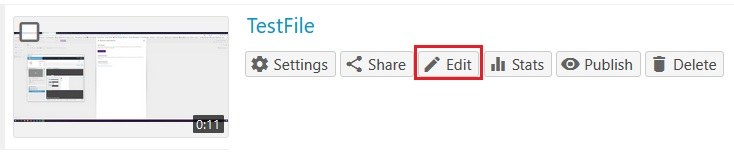
1. Click Edit to open Panopto Editor for the video that you want to manage captions
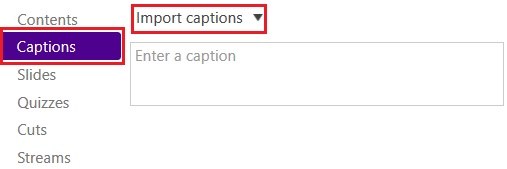
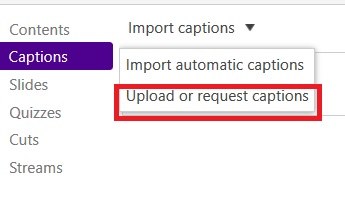
2. Select Captions on the left side of the Panopto Editor and open the Import captions drop-down menu
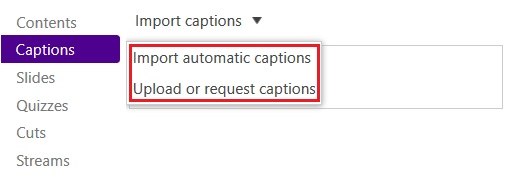
3. Click Import automatic captions to import the subtitles created by the ASR
4. To edit each individual subtitle, click the three dots next to the subtitle, and then click Edit. You can also delete individual subtitles by selecting Delete
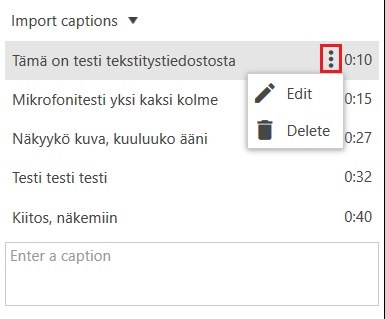
5. Make the desired edits to the text or its timing and click Save to save the changes
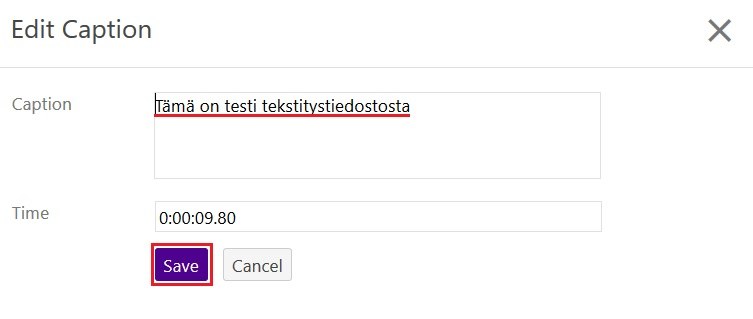
6. After importing / editing captions, press the Apply button in the upper right corner of the Editor to save the changes.

7. Add a caption file to Panopto video:
Choose Captions in the editing view in Panopto. Choose Upload or request captions from the dropdown menu and add the file.
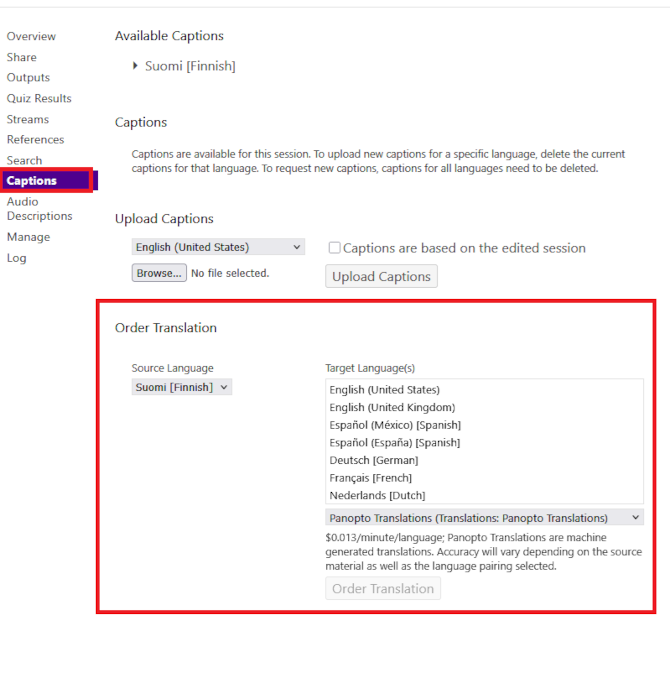
Adding translated captions to a Panopto video
YouTube video captions
YouTube has a tool that allows you to add subtitles to your videos. For more information, see YouTube Help: Adding Your Own Subtitles.
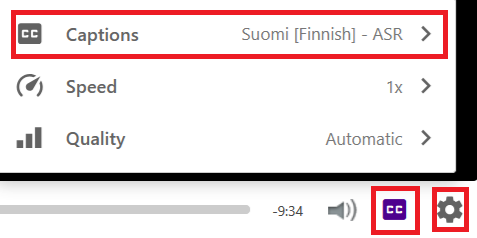
YouTube's captioning tool uses closed captions and allows users to customize the appearance of text in the browser. (Settings > Subtitles > Options).