Teams workspace - additional features
Enable Teams sync
Synchronization is mainly intended for offline work, so if you are working with a good internet connection, it’s best not to use it. Coordinate shared use with your colleagues as needed to avoid this issue: If two users synchronize files from the same workspace to their computers and edit the same file at the same time and save it, the latter save will overwrite the previous one.
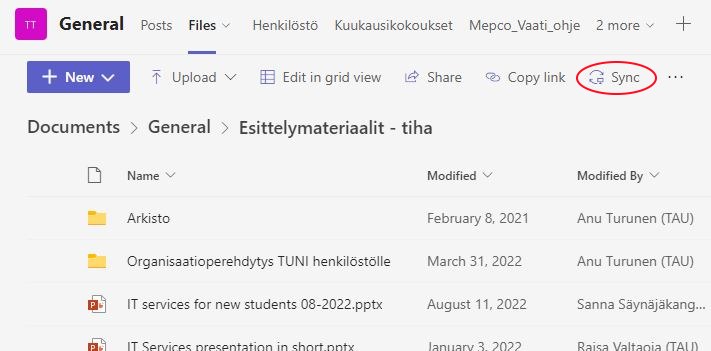
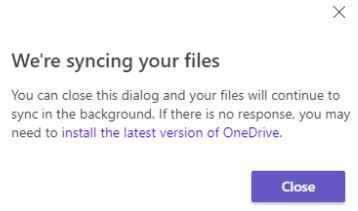
In Teams, go to the channel you want to sync to your computer and select the Files tab at the top. You can sync the whole channel or you can just select a folder. Click Sync. You will receive notifications from Teams and OneDrive that synchronization is enabled. The function copies a copy of the files in the folder to your computer.
If you want to stop syncing any Teams file folder to your computer, you can do it like this:
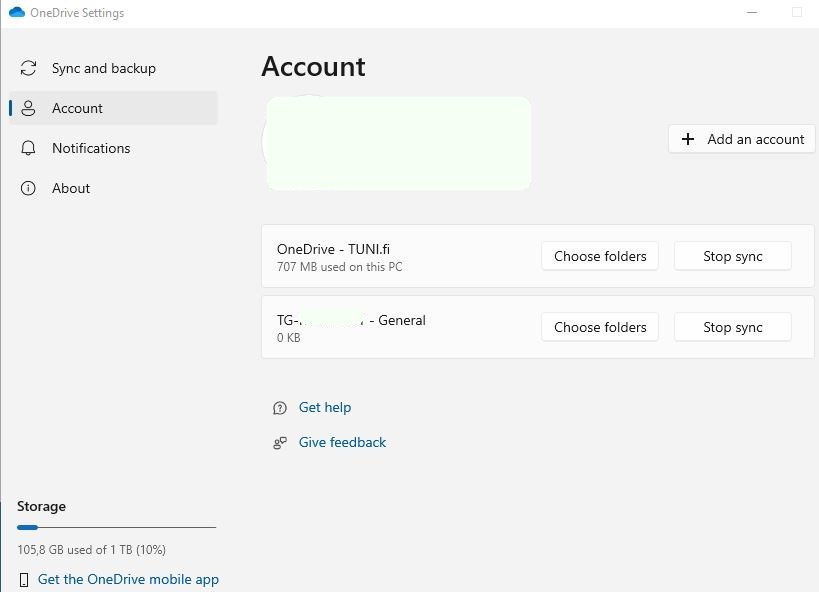
- Click the OneDrive icon (blue cloud) on the right side of your computer's taskbar and the stroller image in the upper corner of the window that opens.
- Select Settings from the drop-down menu.
- Click the Account tab
- If you want to stop synchronizing a TG group channel, click Stop sync next to it. In this case, they stop synchronizing with Teams and they disappear from the Resource Manager where they used to appear. They do not leave the computer, but can only be found under the user's profile information.
- If you want to stop synchronizing a folder in the TG group, click Choose Folders next to the group and remove the tick next to the folder. After this, the folder will be removed from your computer, but will of course remain in Teams.
- If you want to delete a TG group synchronized to your computer, you have to do it manually after this from the Resource Manager in the user's profile.
IT Helpdesk
0294 520 500
it-helpdesk [at] tuni.fi (it-helpdesk[at]tuni[dot]fi)
helpdesk.tuni.fi