Saving files to Teams workspaces
Storage
Group members can share and work on common files in the workspace’s file library. Files are stored on the SharePoint site associated with the Microsoft Teams workspace, and you may need to carry out some tasks on the SharePoint site itself. You can create lists on the workspace site, and you can share up-to-date content on the site by using site news. Workspace owners can extend the site with the available site apps.
Find the instructions on the following pages:
Deleted files are moved to the site recycle bin, from which you can restore them within 90 days. You can restore files in accordance with Microsoft’s instructions Restore deleted items from the site collection recycle bin.
You can create a backup of the files in a Teams workspace as follows. In the folder view, click Download. Teams will then download a ZIP file to your computer containing all the files and folders in that folder, including their contents. Name the ZIP file according to its contents and the date, and store it securely. If you need to store the file on an external drive, see the instructions on the page File encryption.
Enable Teams synchronisation
Synchronization is mainly intended for offline work. If you have a reliable internet connection, we recommend working with the files directly in Teams instead. Coordinate shared use with your colleagues as needed to avoid this issue: If two users synchronize files from the same workspace to their computers and edit the same file at the same time and save it, the latter save will overwrite the previous one.
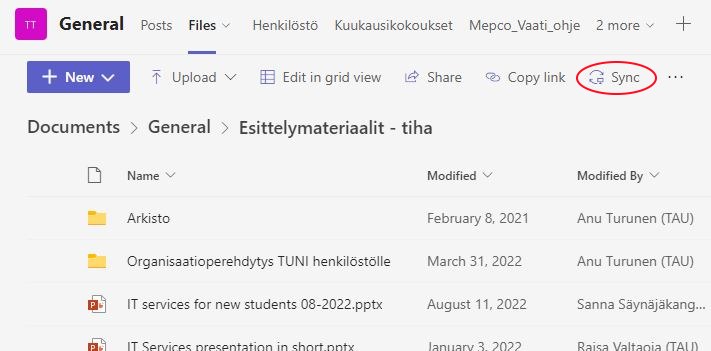
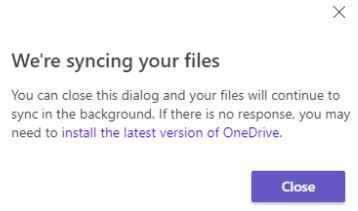
In Teams, go to the channel you want to sync to your computer and select the Files tab at the top. You can sync the whole channel or you can just select a folder. Click Sync. You will receive notifications from Teams and OneDrive that synchronization is enabled. The function copies the files in the folder to your computer.
If you want to stop syncing any Teams file folder to your computer, you can do it like this:
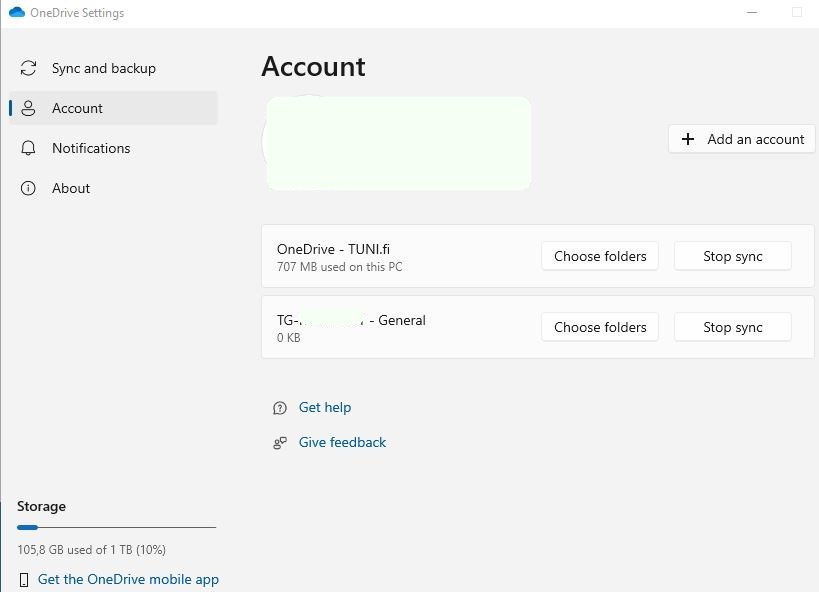
- Click the OneDrive icon (blue cloud) on the right side of your computer's taskbar and then click the Settings icon in the upper corner of the window that opens.
- Select Settings from the drop-down menu.
- Click the Account tab.
- If you want to stop synchronizing a Teams channel, click Stop sync next to it. The files will stop synchronizing with Teams and will disappear from File Explorer. The files are not deleted from the computer and can still be found under the user's profile folder.
- If you want to stop synchronizing a folder in the Teams channel, click Choose Folders next to the group and clear the checkbox next to the folder. After this, the folder will be removed from your computer, but will remain in Teams.
- If you want to delete the locally synchronized files from your computer, you must do so manually in File Explorer after you have stopped synchronization.
IT Helpdesk
0294 520 500
it-helpdesk [at] tuni.fi (it-helpdesk[at]tuni[dot]fi)
helpdesk.tuni.fi