Copilot Chat
- How do Microsoft's Copilot tools differ?
- Get started with Copilot Chat with TUNI ID
- Privacy and security
- Instructions
- Tips
- Additional information
Microsoft Copilot Chat is an AI chatbot (similar to ChatGPT, uses GPT-5, GPT-5.2, GPT-5.3 and GPT-5.4 language models). Copilot can also retrieve information directly from the Internet and can generate images based on text description. Copilot is available for staff users and for students (18+ age).
AI chatbot is useful for supporting tasks such as summarizing and analyzing information, brainstorming, designing, comparing, generating and editing text content, programming, language translation and creating images.
How do Microsoft's Copilot tools differ?
| Tool | Description | Users | How to get started |
| Copilot Chat with TUNI ID | AI chatbot (equivalent to ChatGPT) | Staff: Yes Students: Yes, 18+ age required due to the terms of use Included in the Tampere universities M365 licenses. | Remember to log in with your TUNI ID, otherwise you will be using the less secure free consumer version. Available at microsoft365.com/chat or through the Edge web browser's sidebar. Privacy and security are significantly better than with free consumer versions (e.g. ChatGPT, Copilot without TUNI ID, Gemini). |
| Microsoft 365 Copilot (for Word, Outlook, Teams etc.) | More AI features for Microsoft 365 apps like Word, Outlook, Teams etc. See detailed features. | Staff: Additional fee Students: No | Check instructions, pricing information, and license ordering. |
| Copilot Chat (free consumer version) | AI chatbot (equivalent to ChatGPT) | Anyone: Available only for private use, personal Microsoft ID may be required. | Free for anyone NOTE! Privacy and security are significantly weaker than with Copilot Chat with TUNI ID. |
Get started with Copilot Chat with TUNI ID
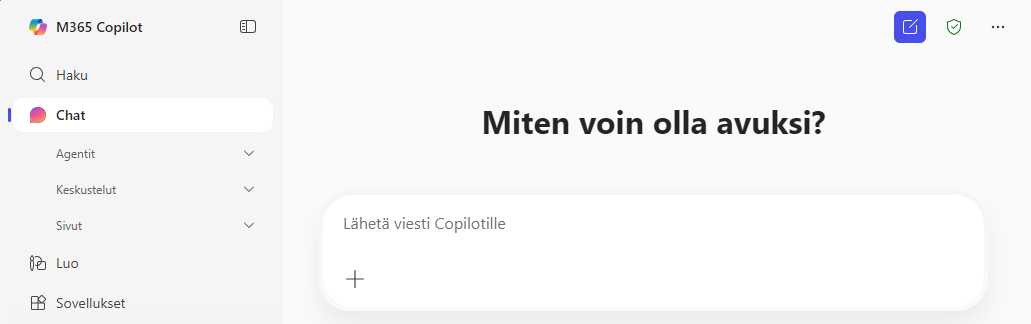
- Log in with your TUNI ID and make sure that the shield icon is visible at the top.
- Copilot Chat is available for all staff users and students (18+ age).
- Works in all commonly used web browsers and mobile devices.
- Additionally, Edge web browser has Copilot Chat sidebar with additional features, so it is recommended for staff to use the Edge browser. Click the Copilot Chat button in the upper right corner in Edge browser and verify shield badge is shown.
- Before you start using Copilot Chat, please read about privacy and security from below.
Privacy and security
Copilot Chat only has access to your own files that you add to the chat yourself.
In addition, if you use the Copilot Chat sidebar in the Edge browser or in Outlook, the AI can, at your request, access the content of the current webpage or your emails.
YES - Allowed with Copilot Chat:
- Public, internal, and confidential information (data classes 5, 4, and 3).
NO - Not allowed with Copilot Chat:
- Confidential with restrictions or secret information (data classes 2 and 1).
See additional information: Data classification.
When using Copilot Chat with TUNI ID, the data processed is not used to train the AI. All data and data processing remain within the EU as Copilot Chat with TUNI ID is covered by Microsoft Enterprise Data Protection and EU Data Boundary protections.
The above security features are an essential difference compared to free AI chatbot applications (e.g. ChatGPT, Copilot consumer version and Google Gemini).
See additional information: Copilot Chat privacy statement.
Instructions
Use Copilot Chat like any other chat application. Type a text prompt and the AI will respond to you. Be critical of the responses provided by AI. AI-generated responses can contain errors and even completely wrong information.
Eduhouse trainings
Eduhouse trainings are free of charge for staff and students.
On the training page, select: Login > Login with Microsoft account and use your TUNI ID.
Free Microsoft trainings
- Get started with Copilot Chat
- Write effective prompts and do more with prompting
- Work smarter with Microsoft 365 Copilot Chat
- Enhance teaching and learning with Microsoft 365 Copilot Chat
Tips
Process a file or a web page using AI
A) You can provide files for AI to process by referring to a file already saved in your M365 environment (e.g. a file in your own OneDrive) using a / -key, or by clicking the "Add a file" button in the Copilot Chat message field.
You can also refer directly to a webpage link whose content you want to ask the AI about.
B) For quick needs, you can also use the Copilot Chat sidebar in the Edge browser, which allows you to process content visible in the active browser tab, such as a webpage or a PDF file.
Check Copilot Chat sidebar settings:
- Click the Copilot Chat button in Edge browser
- Click the three dots in the Copilot Chat sidebar and select "Notification and App settings”
- If needed, enable ”Allow access to any webpage or PDF” setting. Note that this setting will remain permanently active unless you explicitly deactivate it later.
Open a web page or open a PDF file in your browser and make a request to the AI, for example: ”Current page: Make a 50 word summary”
Create images
You can also use AI to create images. For example, make a request to the AI: "Create a picture: An old dog sniffing the green grass. The style is realistic."
You can also add an image to the chat from your own device and edit the image by describing the changes as text.
Copilot Chat may dynamically slow down or limit the creation of images depending on the usage capacity of the service. However, there is no longer a fixed maximum number of image generations per day.
Use mobile device
Install the Microsoft 365 Copilot app on your mobile device (Google Play / Android ja Apple Store / iOS) and you can use Copilot Chat with your TUNI ID on your personal mobile device or your work mobile device.
If you are using a work mobile device, Microsoft 365 Copilot app can be found in the work profile’s app store.
User interface language
Copilot Chat understands multiple languages and responds in the language you use for your input. The Copilot Chat interface language is the same as the language of your web browser interface.
Custom instructions: change the style of responses
You can adjust the style of Copilot Chat’s responses in all conversations by adding your own custom instructions: Copilot Chat > three dots in the upper right corner > "Settings" > "Personalization" > "Custom instructions".
Your custom instructions could be, for example: ‘Communicate in a straightforward Finnish style without unnecessary pleasantries. Avoid flattery and be critical.’
Share prompts with other users
You can share prompts with a link to all users of Tampere universities. For example, sharing a prompt to start with students as part of a learning assignment or sharing good prompts with other users.
Hover mouse over any prompt you've sent to the AI and select the link icon (Copy Prompt Link).
Create your own Copilot Chat agents and share them for others to use
Microsoft Copilot Chat agents are AI assistants built for a specific, clearly defined task or topic. They can answer questions, retrieve information from selected sources, and support work tasks in a more targeted way than standard Copilot Chat.
Copilot Chat agents are useful, for example, for answering frequently asked questions, providing instructions, retrieving information from restricted sources, and supporting frequently repeated tasks or routines. You can also share Copilot Chat agents with others, which allows you to build, for example, learning assignments and teaching assistants, or a shared team assistant for a specific work task.
More detailed information and instructions on Copilot Chat agents.
Copilot Chat version number
You can find the Copilot Chat version number from the menu: three dots (top right) > “Settings” > “Version number”. Note that the version number changes very frequently, even daily.
When referring to the use of Copilot Chat and other AI-assisted applications, it is often more important than the version number to state clearly when the application was used, that is, the date of use or the period of use, and the language model used if known (for example, GPT 5.2).
More tips
Additional information
- Tampere universities AI instructions
- Microsoft Copilot Chat product information, features and limitations
- Upcoming features in Copilot Chat
For technical problems, you can contact the IT Helpdesk, but there is no wider support for using AI. Follow the webinar & training options and guidance on this topic on the intranet.
IT Helpdesk
0294 520 500
it-helpdesk [at] tuni.fi (it-helpdesk[at]tuni[dot]fi)
helpdesk.tuni.fi